Memory: RAM vs. Storage
Table of Contents
- Two Kinds of Remembering
- RAM: The Workspace
- Storage: The Filing Cabinet
- The Memory Hierarchy
- How Big Are the Gaps?
- Cache: Keeping Things Close
- When RAM Runs Out
- What This Means for Your Code
- Try It Yourself
1. Two Kinds of Remembering
People often mix up "memory" and "storage" — a phone ad might say "8 GB of memory and 256 GB of storage". They are two very different things:
| RAM (memory) | Storage (SSD / hard drive) | |
|---|---|---|
| Job | Holds what's being used right now | Keeps files for the long term |
| Speed | Very fast | Much slower |
| Size (typical laptop) | 8–32 GB | 256 GB – 2 TB |
| Cost per GB | Expensive | Cheap |
| When power is off | Everything is lost | Everything is kept |
Think of a desk and a filing cabinet. Your desk (RAM) is where you spread out the papers you're working on — small, but everything is within reach. The filing cabinet (storage) holds everything you own, but you have to walk over and dig to find something.
2. RAM: The Workspace
RAM stands for Random Access Memory. "Random access" means the CPU can jump straight to any byte in it, in any order, equally quickly.
RAM is organized as a huge row of numbered slots, one byte each. The number of a slot is its address. When your program has a variable, that variable lives at some address in RAM — the CPU loads it from that address, works on it, and stores it back.
The important property is that RAM is volatile: it needs constant power to hold its data. Turn the computer off — or if a program crashes — and whatever was only in RAM is gone. That's why unsaved work disappears when your laptop battery dies.
Everything that's currently running lives in RAM: the operating system, every open app, every browser tab, and all their data.
3. Storage: The Filing Cabinet
Storage is non-volatile — it keeps data with the power off. It's where your files, photos, installed apps, and the operating system itself are kept when they aren't running.
There are two main kinds:
- SSD (Solid-State Drive) — stores data in flash memory chips, with no moving parts. Fast, silent, and standard in nearly every modern laptop and phone.
- HDD (Hard Disk Drive) — stores data on spinning magnetic platters with a moving arm that reads them, like a tiny record player. Much slower, but very cheap per gigabyte, so it's still used for backups and bulk storage.
Before the CPU can use anything from storage, it has to be copied into RAM first. Opening an app means reading it from storage into RAM. Saving a document means copying it from RAM back to storage.
4. The Memory Hierarchy
RAM and storage aren't the only places data lives. There's a whole ladder of them, from tiny and fast to huge and slow:
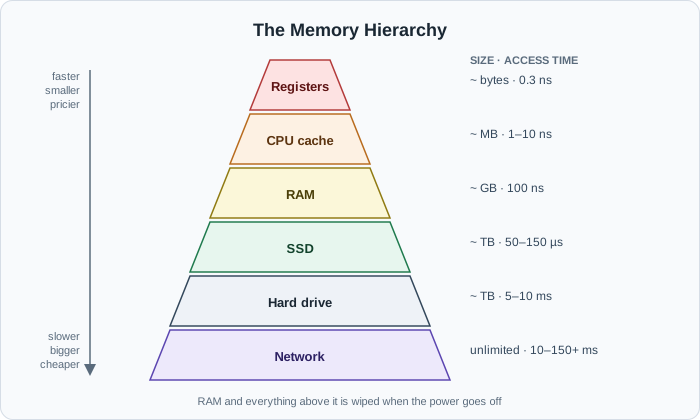
- Registers — inside the CPU; a few hundred bytes in total.
- CPU cache — on the CPU chip; a few megabytes.
- RAM — next to the CPU on the motherboard; gigabytes.
- SSD / HDD — further away; hundreds of gigabytes to terabytes.
- The network — another computer entirely, possibly on the other side of the world; practically unlimited, and the slowest of all.
The rule is always the same: the closer to the CPU, the faster, smaller, and more expensive.
5. How Big Are the Gaps?
Numbers like "100 nanoseconds" are hard to feel. So imagine the computer were slowed down until reading a register took 1 second. At that scale, roughly:
| Where the data is | Real time (approx.) | If a register took 1 second |
|---|---|---|
| Register | 0.3 ns | 1 second |
| CPU cache | 1–10 ns | 3–30 seconds |
| RAM | 100 ns | about 5 minutes |
| SSD | 50–150 µs | 2–6 days |
| Hard drive | 5–10 ms | 6 months – 1 year |
| Network request across the world | 150 ms | about 15 years |
The exact numbers vary between machines, but the shape never does: each step down the ladder is many times slower than the one above. Going to the network, compared with using data already in the CPU, is like waiting fifteen years for an answer.
This single table explains a lot of performance advice you'll hear throughout your career.
6. Cache: Keeping Things Close
Because RAM is so much slower than the CPU, CPUs keep a small, very fast copy of recently used data right on the chip. This is the CPU cache, usually in levels called L1 (smallest, fastest), L2, and L3 (largest, slowest of the three).
When the CPU needs some data, it checks the cache first:
- Cache hit — the data is already there. Fast.
- Cache miss — it has to fetch it from RAM. Slow, but now it's in the cache for next time.
The same idea — keep a fast copy of things you'll probably need again — appears everywhere in computing, not just inside the CPU. Your browser caches images, so revisiting a site is faster. Servers cache database results in RAM using tools like Redis. It's all the same trick, applied at different levels of the hierarchy.
7. When RAM Runs Out
What happens when every open app together needs more RAM than you have?
The operating system starts moving parts of memory that haven't been used recently out to storage, to free up RAM for what's active. This area on the disk is called swap (on Linux and macOS) or the page file (on Windows). When a program needs that data again, it's copied back into RAM.
It keeps things running — but remember the table: storage is thousands of times slower than RAM. When a computer relies heavily on swap, everything becomes sluggish, and you can often hear or feel it working hard. That's the real reason "closing some browser tabs" helps: each tab holds its own chunk of RAM.
If even swap isn't enough, the operating system has to do something drastic: on Linux, a mechanism called the OOM killer (Out Of Memory) picks a process and forcibly ends it. If you've ever seen a Docker container or a server app die with "out of memory", this is what happened.
8. What This Means for Your Code
You don't need to think about registers when writing a web app. But the hierarchy shapes everyday decisions:
- A variable in your program lives in RAM (and often in cache) — reading it is essentially free.
- Reading a file means going to storage — much slower, so avoid doing it repeatedly in a loop.
- A database query or API call usually means going over the network — the slowest step of all. One slow page is very often caused by too many of these.
- Loading a huge file entirely into memory can exhaust RAM and crash your app. Processing it in pieces (streaming) avoids that.
9. Try It Yourself
Look at how your RAM is being used right now:
- Windows: Task Manager → Performance → Memory. Note "In use" and "Available". Then go to the Processes tab and sort by Memory.
- macOS: Activity Monitor → Memory tab. Look at "Memory Used", "Swap Used", and the Memory Pressure graph at the bottom.
- Linux: run
free -hin a terminal.
Now open ten or fifteen browser tabs of heavy websites and watch the memory numbers climb. Close them again and watch it drop. Which app on your computer is using the most RAM? (It's almost always the web browser.)
RAM holds what's running now; storage holds everything else. Next, we'll look at how storage is organized into the files and folders you use every day.
Buy Me a Coffee
Found this tutorial helpful? Consider buying me a coffee to support more free content!