Putting It All Together
Table of Contents
- One URL, Start to Finish
- The Second Click
- Recap
- When a Site Doesn't Work
- Cheat Sheet
- What This Series Left Out
- Where to Go Next
1. One URL, Start to Finish
It's the first time today you've opened your own site. You type this into the address bar and press Enter:
dara-sok.github.io/my-site
Here's everything that happens.
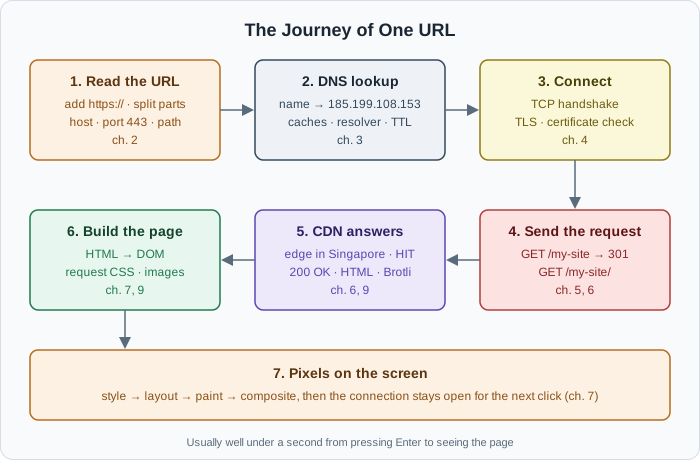
1. The browser reads what you typed (chapter 2). It has no scheme,
but it looks like a domain, not a search, so the browser adds
https://. It splits the URL: scheme https, host
dara-sok.github.io, port 443 (the default for https), path
/my-site. The browser checks its cache for this URL — nothing yet.
2. DNS turns the name into a number (chapter 3). The browser's own
DNS cache is empty for this name, so it asks the operating system. The
OS checks its cache and the hosts file, then asks the resolver your
Wi-Fi router told it about. The resolver already has GitHub's answer
cached from someone else's lookup. Back comes 185.199.108.153, with
a TTL.
3. A connection opens (chapter 4). The OS picks a temporary port on
your side — say 52814 — and TCP does its three-way handshake with
185.199.108.153:443. This lands on a CDN edge server in Singapore,
not in the United States, because GitHub Pages runs on a CDN (chapter
9). Then the TLS handshake: the server shows its *.github.io
certificate, the browser checks it was signed by a trusted CA, matches
the name, and hasn't expired. A secret key is agreed. Everything from
now on is encrypted.
4. The request is sent — and redirected (chapters 5 and 6). Over that encrypted connection:
GET /my-site HTTP/2
Host: dara-sok.github.io
Accept: text/html,…
Accept-Encoding: gzip, br
/my-site is a folder, so GitHub answers 301 Moved Permanently with
Location: https://dara-sok.github.io/my-site/. The browser follows it
immediately, over the same connection, with GET /my-site/. (Next
time, it will remember the 301 and skip this step.)
5. The CDN answers (chapters 6 and 9). The edge server has a fresh
copy: x-cache: HIT. It sends 200 OK, content-type: text/html; charset=utf-8, cache-control: max-age=600, an etag, and the HTML,
compressed with Brotli. The browser decompresses it and saves a copy in
its cache for the next 10 minutes.
6. The browser builds the page (chapters 7 and 9). It parses the
HTML into the DOM, top to bottom. It finds <link href="style.css">
and requests /my-site/style.css over the same connection; rendering
waits for it. It finds the <img> and requests the photo; that doesn't
block anything.
7. Pixels on the screen (chapter 7). Style, layout, paint, composite — and the GPU puts your page on the screen. The photo finishes loading and pops in, and the Load time appears at the bottom of the Network tab. No cookies were involved, because a static site doesn't need to remember you (chapters 8 and 10). The connection stays open, in case you click something.
All of that typically takes well under a second.
2. The Second Click
Now you click About me. Look how much less happens:
- No DNS lookup — the answer is cached, and anyway, the connection is still open.
- No TCP or TLS handshake — the same connection is reused.
- Request —
GET /my-site/about.html. - Response — a
200with the about page. style.css— not requested at all. It's in the browser's cache and still fresh. The Network tab shows(memory cache).
That's the whole point of chapters 4 and 9: the first visit pays for the setup, and everything after it is cheap.
3. Recap
| Chapter | The key idea |
|---|---|
| 1. What Is the Web? | The internet is the network; the web is one service on it. Clients ask, servers answer |
| 2. URLs, Piece by Piece | Scheme, host, port, path, query, fragment. The fragment never leaves the browser |
| 3. IP Addresses and DNS | Computers use numbers. DNS turns names into them, and everyone caches the answer |
| 4. Connections: TCP, Ports, and TLS | TCP makes delivery reliable; TLS makes it private and proves who's on the other end |
| 5. HTTP Requests | A method, a path, headers, and maybe a body. It's just text |
| 6. HTTP Responses and Status Codes | 2xx worked, 3xx look elsewhere, 4xx your fault, 5xx the server's fault |
| 7. Inside the Browser | HTML → DOM → style → layout → paint. One page means many requests |
| 8. Cookies, Sessions, and State | HTTP forgets; the browser reminds it with a cookie on every request |
| 9. Caching, CDNs, and Speed | Don't download what you already have, and serve it from nearby |
| 10. Static Sites, Web Apps, and APIs | Where the HTML is made, and HTTP carrying data instead of pages |
4. When a Site Doesn't Work
This series is also a debugging map. When something on the web breaks, walk down the same steps the browser does, and find the first one that fails:
| Symptom | Which step | What to check |
|---|---|---|
"This site can't be reached", DNS_PROBE_FINISHED_NXDOMAIN | DNS | Is the name spelled right? Does nslookup find it? Did you just change a DNS record? |
| "Connection refused" or timed out | Connection | Is the server running? On the right port? Is localhost the right host? |
| "Your connection is not private" | TLS | Expired certificate, or a name that doesn't match |
404 | Request | Check the path — and relative links on GitHub Pages |
401 / 403 | Request | Not logged in / not allowed. Check the cookie or token |
500 | Server | A bug in the server code — check its logs |
502 / 504 | Server | The app behind the proxy is down or too slow |
| Blocked by CORS | Browser | The API server needs to allow your origin |
| "My change doesn't show up" | Cache | Hard reload, or wait for max-age to run out |
| The page loads but looks broken | Rendering | Find the CSS or JS request in Network — is it a 404? |
The first move is almost always the same: open the Network tab and find the request. If there's no request, the problem is before it (DNS, connection, or the frontend never sent it). If there's a request, its status code tells you which side to look at.
5. Cheat Sheet
curl
curl <url>                          # GET, print the body
curl -I <url>                       # headers only (HEAD)
curl -i <url>                       # headers and body
curl -v <url>                       # everything: DNS, TLS, request, response
curl -L <url>                       # follow redirects
curl -X POST <url> -d "a=1"         # POST a form
curl -X POST <url> \
  -H "Content-Type: application/json" \
  -d '{"a": 1}'                     # POST JSON
curl -H "Name: value" <url>         # add a header
curl -c jar.txt -b jar.txt <url>    # save and send cookies
curl -s -o /dev/null -w "%{http_code}\n" <url>   # just the status code
DNS and network
nslookup <domain>                   # name → IP address
cat /etc/hosts                      # local overrides
DevTools (F12, or Cmd+Option+I on macOS)
| Where | What for |
|---|---|
| Network | Every request: method, status, headers, timing, size |
| Network → Disable cache | Always get fresh files while developing |
| Network → Preserve log | Keep requests across page loads and form submits |
| Network → Fetch/XHR | Only the requests JavaScript made |
| Network → throttling | Pretend to be on a slow phone connection |
| Elements | The DOM right now |
| Console | Errors, including CORS |
| Application | Cookies, localStorage |
| Lighthouse | A performance report |
Status codes to know by heart
200 OK            301 Moved Permanently   400 Bad Request    500 Internal Server Error
201 Created       302 Found               401 Unauthorized   502 Bad Gateway
204 No Content    304 Not Modified        403 Forbidden      503 Service Unavailable
                                          404 Not Found      504 Gateway Timeout
                                          429 Too Many Requests
6. What This Series Left Out
This series covered what every developer needs. A few more topics you'll meet as you go further:
- WebSockets — a connection that stays open so the server can push messages instantly, for chat and live updates.
- HTTP/2 and HTTP/3 in depth — how they send many requests at once, and why HTTP/3 runs on UDP.
- Load balancers and reverse proxies — how one site runs on many servers. Covered in Networking for Developers and System Design Fundamentals.
- Web security attacks — XSS, CSRF, and others that abuse cookies, scripts, and forms. The Cybersecurity track covers them properly.
- Service workers — scripts that let a site work offline and cache things in clever ways.
- SEO — how search engines crawl and rank pages, and why server-rendered and static HTML helps.
7. Where to Go Next
You now know what happens on every request your code will ever send or receive. Here's how that connects to the rest of the Start Here roadmap:
- HTML & CSS Fundamentals — the next step. You know what the
browser does with HTML and CSS; now learn to write them well, and
make
my-sitelook great. Every improvement is still a branch, a pull request, and a merge that goes live. - JavaScript & TypeScript Fundamentals — the
fetch(), the DOM, and the event loop you've now seen from the outside. - NestJS Crash Course — build the other side: an API that receives requests and sends JSON responses with the right status codes.
- Keycloak Crash Course — redirects, tokens, and the
Authorizationheader, for real logins. - Networking for Developers — go one layer deeper into IP, TCP, TLS, ports, and proxies, with more tools for debugging.
- Cloud+ Tutorial — deploy your own server and connect a custom domain, using the DNS records from chapter 3.
One habit to take with you: keep the Network tab open. Whenever you build something, glance at what's actually being sent and received. Most bugs on the web are visible right there, in a request or a response — and now you can read them.
Buy Me a Coffee
Found this tutorial helpful? Consider buying me a coffee to support more free content!